How do I export a report showing additional data captured for each ticket holder?
Introduction
This help guide can be used to export the list as a .CSV or .XLSX file. If you would prefer, you can also reference our related article How can I save a custom filter in the Tickets module for future use?
Summary
If you have set any of the additional fields as Required, you can easily view their completion status in this module. This allows you to identify and contact ticket holders who have not yet completed their personalisation. Remember: this must be completed for the tickets to become valid and scannable.
Help guide
- Via the Account menu, open the Tickets module (this will show all tickets across your account)
- Update the Status filter if required (by default valid, reserved and detailsrequired will be included)
- Update the Event filter to select a specific event
- Update any of the additional filters and/or as required
- Click Export

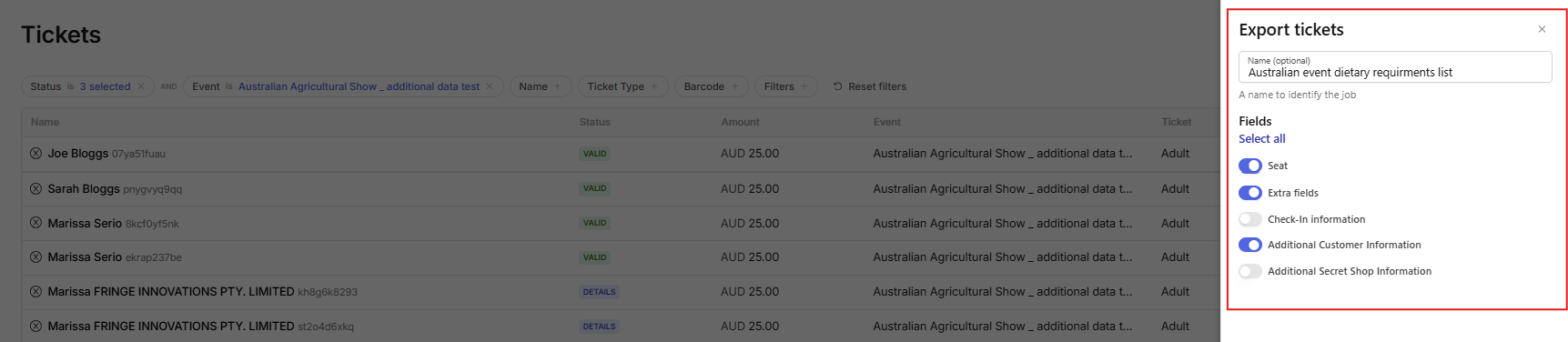
- A pop out box on the right will appear allowing you to name the export, and toggle on/off fields for your report
- Click Export
- Once complete, your export will appear with a Status in the Jobs menu, click the download icon.

Note: to refer back to these Jobs later, open your user account settings (click your name in the bottom-left corner of the dashboard) then select Jobs.