How to set up a Secret Event URL with Promo Code access
Introduction
Secret Event URLs let you create unlimited hidden access links for your events using Secret Shops. These can optionally be protected with a Promo Code to control access. Promo Codes are not necessarily required for tracking, as all sales via Secret Event URLs are independently tracked and reported in the dashboard. However, they can be used if desired to track multiple codes as an alternative to multiple links. Secret Event URLs / links can be used for;
- Pre-sales and early access ticket releases
- Special seating allocations not available in general sale
- Discounted ticket pricing for selected audiences
- Custom pricing or alternative customer charges
Summary
The process is simple and broken into two steps:
- Create and configure a Secret Shop
- Create a Promo Code
This Help Article assumes you have already set up your Event and Tickets.
Creating an additional Promo Code layer is optional. If it is not required and you only need the Secret Event link, you can skip Step 2.
Help Guide
STEP 1: Create and configure a Secret Shop
Tip: Refer to our related article Secret Shops overview & set up
- Open your Event, then click Secret Shops
- Click Add Secret Shop (by default, a New Secret Shop will appear in the list)
- Click the ''' then Edit to open the Secret Shop Settings
- Configure your Secret Event settings as required
- As a minimum, you are required to set the Sales Start and End date/time and Max Ticket Volume
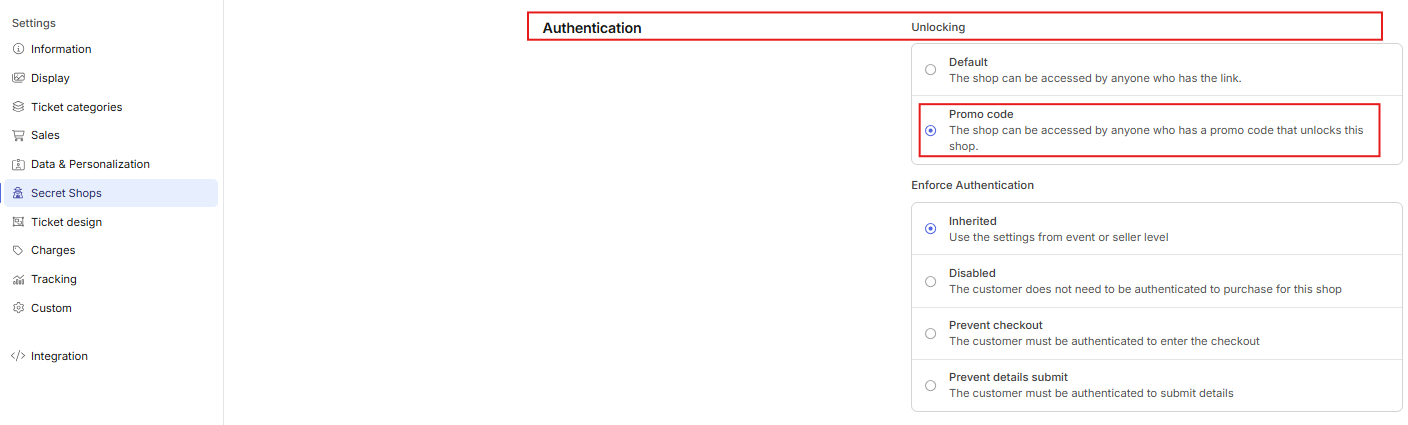
- To enable Promo Code unlocking stay on the Information & Sales tab, scroll down to Authentication>Unlocking. Select the Promo Code option.
- Click Save
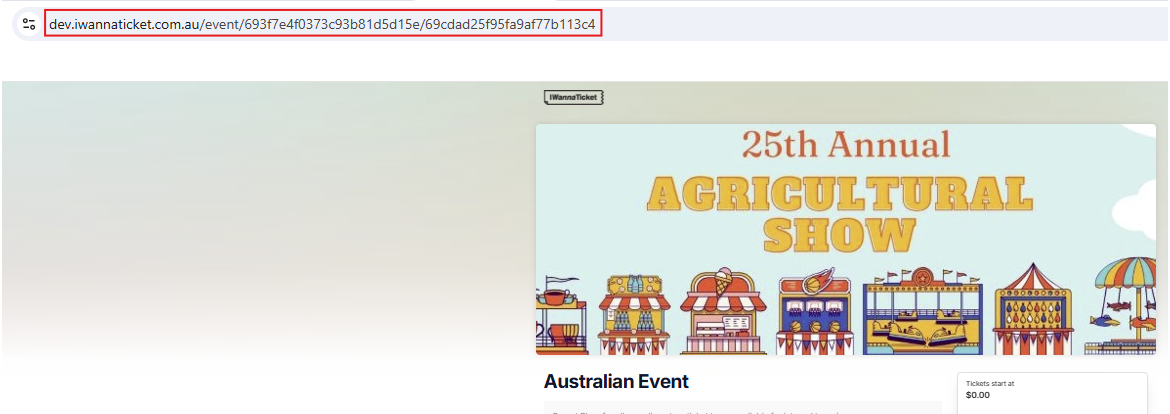
To obtain your Secret Event URL, simply click More Actions > View in Browser and copy the URL from your web browser.
STEP 2: Create a Promo Code
For this example, the Promo Code does not apply any discounts or restrictions. It is used solely to unlock access to the Secret Event URL / link.
Tip: Refer to our related article for more information on Promo Codes and Discounts
- Click Discounts > Promo Codes then click Create Promo Code
- Ensure the Active toggle at the top of the page is ON to activate the promo code
- Configure the Promo Code with the settings you require. For this example, we will:
- Set the Promo Code Name (internal)
- Select Promo Code Type as Single Promo Code
- Create the Promo Code (this will be used to unlock access, so consider whether it should be simple and easy to share, or more complex depending on your use case).
- Scroll to Unlocking and toggle Unlock Secret Shops ON
- Select your secret shop Event from the drop down list
- Click Create
Always test your Secret Event URL and Promo Code to ensure it is working as intended. Alternatively, contact your Account Manager to review the setup before going live.
Use More Actions > View in Browser or Test Checkout to review and test.