How can I process an Internal Rebooking for a Customer
Introduction
Important: Internal rebookings are configured and managed separately from Customer Self-Service rebookings
Internal rebooking can be used to change a customer's tickets from one event to another or within the same event through the dashboard - without needing to refund the original order or require the customer to rebook and make a new payment. There are no restrictions for internal rebooking. Any ticket can be rebooked to any other ticket or event.
When rebooking, a new internal transaction is created. The value of the rebooked items (e.g., tickets, ticket fees) is converted into a voucher. This voucher is then automatically applied to the new internal transaction, leaving only the difference to be paid (if applicable).
Important:
- A new system fee is charged for each paid ticket rebooked (fee between IWannaTicket and you)
- If you use customer charges, you can choose whether to refund or retain the original customer charges
- You can optionally apply an additional rebooking fee
- When rebooking to cheaper tickets, the remaining balance is forfeited. A refund to the customer is not possible. If a refund is desired, it is recommended to cancel the old transaction and issue a new one separately.
Summary
Before processing rebookings, it’s recommended to establish an internal protocol that outlines how customer charges will be managed. This will streamline the internal rebooking process and ensure consistency. It’s important to set up your internal rebooking approach in line with your financial objectives.
You can read more about Customer Charges, System Fees, and Rebooking Fees in the related articles linked at the bottom of this page. Alternatively, you can schedule a call with your account manager or our sales team to discuss your objectives, and we can provide guidance on the best approach to achieve them
Help Guide
- Go to the Transactions module, find the desired transaction, and open it.
- At the top right, click on More Actions and select Rebook. A new window will open.
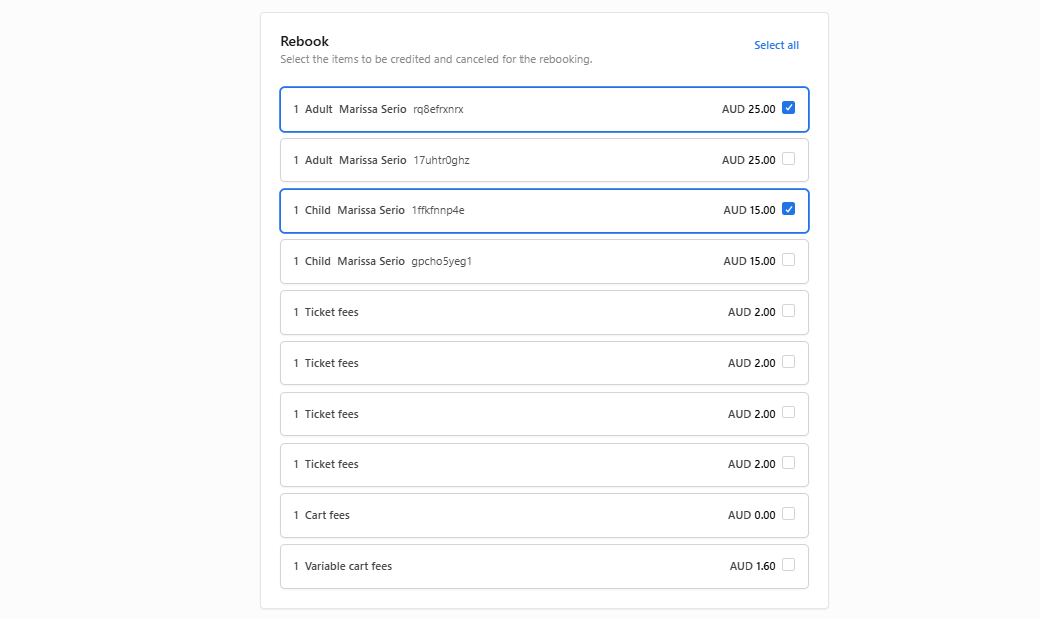
- Select the items from the transaction that should be rebooked. The value of each selected item will then be applied against the price of the new tickets.
- Click Continue. A new window will open.
- Select the desired event to which the tickets should be rebooked.
- Optionally, you can a Redeem voucher
- Select the desired tickets.
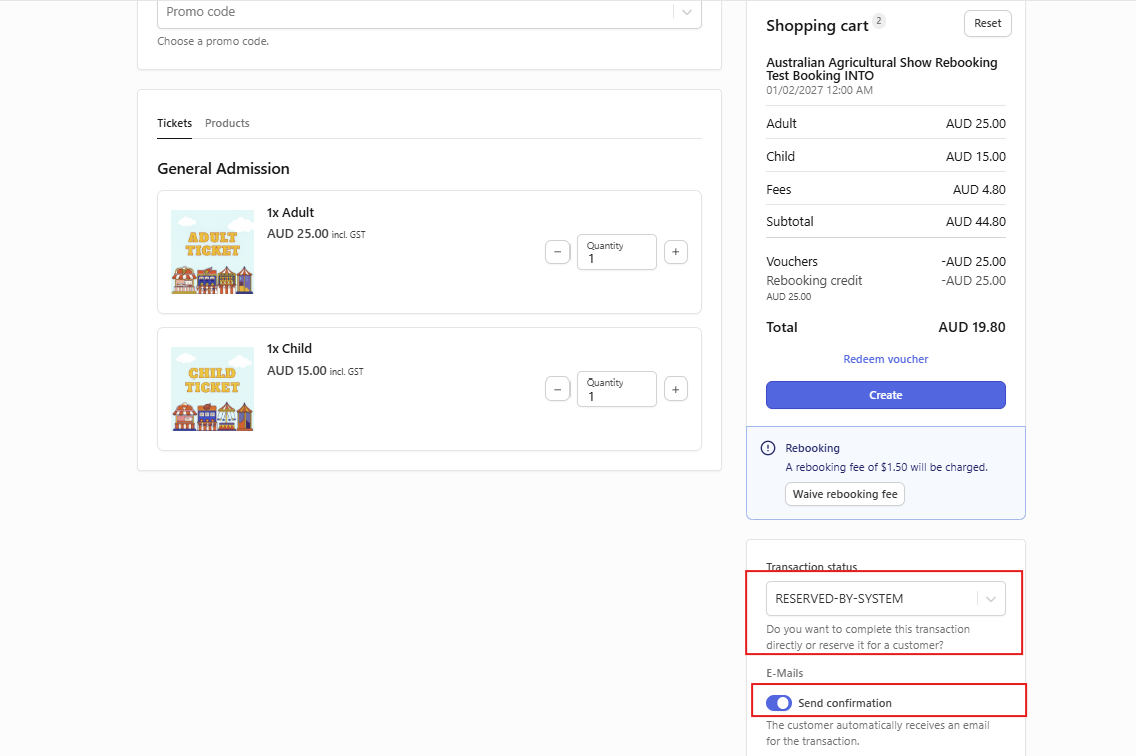
- The cart will now be calculated based on the price of the selected tickets minus the value of the previously selected items. If the value of the new tickets is higher, a payment will be required. If the value is lower, the cart will be set to $0. (reminder: a credit note for rebooking is not possible)
- If a rebooking fee is set up on your account, it will be applied automatically. You can override this by selecting Waive Rebooking Fee
- Select the target status.
- Reserved-by-System (recommended): The outstanding balance must be paid by the ticket buyer via a payment link.
- Complete: The booking is directly marked as paid.
- Important: Toggle ON Send Confirmation, if you require the payment link and/or tickets to be sent directly to the customer via email (recommended)
- Click Complete to finalise the rebooking.
Additional Resources
If you allow internal rebooking, it’s important to clearly communicate this to your ticket holders. We recommend including this information on your website - typically within a FAQ or Ticketing Information section and/or on the event page or within your Terms & Conditions.
To reduce customer friction and maximise the benefits of offering internal rebookings, you should clearly outline your rebooking parameters, including:
- Which ticket types can or cannot be rebooked, and any limitations
- Whether tickets can be rebooked within the same event and/or across different events
- Any applicable deadlines or cut-off times for rebooking (e.g. 48 hours prior to event start)
- Advising that new booking fees may apply and/or a rebooking fee (your policy)
- Advising customers that no refunds or credits are issued when rebooking to cheaper tickets
- Advising customers that if higher priced tickets are purchased, a payment will be required
If you have a variable cart fee (VCF) as part of your customer charges, it is added to any payment sent to the customer. For example, if you apply a $10.00 rebooking fee and have a 2% VCF, the customer would pay $10.20. You may wish to reference this total in communications to your ticket holders
Internal Rebooking approaches - managing customer charges & system fees examples:
When rebooking a ticket internally, there are several approaches. There’s no single “right” method, but it’s important your organisation agrees on a consistent strategy.
Generally, we find Option 1 is the most populuar, with our without the additional rebooking fee.
Option 1: Rebook using only the Ticket value
How it works:
- Select only the original ticket price as credit prior to rebooking into the new order
- Customer charges from the original order are retained by you and remain on that order
- When customer charges match or are higher than system charges, they offset 100%, ensuring your accounts remain balanced or in surplus at settlement
- If Customer charges are applied on the new event, the customer will have to pay the new customer charges on the new order before tickets become valid (creating an additional step for the customer)
Option 2: Rebook using the Ticket value and Customer Charges
How it works:
- Both ticket price and original customer charges are applied to the new order
- If the original order value matches the new order value, no additional payment is required
- Tickets are sent automatically with a Valid status.
- Since the original customer charge was applied as credit toward the new order, a deficit will appear for the original event at settlement if the customer fees collected are less than the System fees we charge you.
Important: If settlement is being made to a third-party hirer, the amount paid (settled) to you by IWannaTicket may be less than the ticket revenue collected, always check this carefully to ensure third-party hirers are paid correctly.
Rebooking fee (optional):
- You can charge a rebooking fee (separate to the standard Customer Charges)
- This revenue can be tracked separately from ticket revenue and included/excluded in hirer reports
- Revenue from the rebooking fee is always applied to the new event
Customer payment responsibilities, when a payment is required
- Pay the customer charge for the new order (decided by you).
- Pay any fixed rebooking fee if applied (decided by you)
- If the balance is unpaid, the new ticket will remain invalid or expire, depending on your payment strategy.
Operational notes:
- Ensure box office staff are aware of your processes in case a customer arrives with unpaid invoices.
- Outstanding purchase intents can be monitored and resent via the dashboard.
- Ensures all cancelled, refunded, or rebooked tickets are accounted for and balanced within the Event & Settlement