How can I process a Cancellation &/or refund?
Introduction
This article will guide you through cancelling and/or refunding either a full order or part of an order.
When processing a refund, you can choose to return funds to the original payment method.
To issue a voucher instead, process this via a partial cancellation.
By selecting partial cancellation you can also decide whether to include customer charges in the refund. Keep in mind that system fees are typically applied at the time of ticket creation, so refunding customer charges may result in a deficit at settlement that requires payment to IWannaTicket.
For further information, please contact your Account Manager or refer to the related articles on customer charges and system fees.
As free tickets do not create a transaction, this article does not apply. Instead, free tickets can be invalidated (cancelled) directly from the Tickets module—please refer to the relevant article for further guidance.
Summary
Full Cancellation
By selecting cancel (full cancellation), you cancel and optionally refund the entire transaction
- Transaction status is set to Cancelled
- Tickets are automatically invalidated — they can no longer be accessed by the customer or used for check-in.
- If you choose to issue a refund, all tickets and customer charges (if applicable) are refunded
- Refunds can only be returned to original payment method
- Cannot refund to a voucher (use partial cancellation instead)
- Cannot retain any customer charges (use partial cancellation instead)
- A cancellation cannot be undone
Partial Cancellation
With a partial cancelation, specific line items of a transaction are canceled and optionally refunded
- Each individual ticket and customer charges of the transaction are presented as line items
- Refund selected/all tickets as required
- Refund or retain customer charges
- Optionally refund to a voucher instead of the original payment method
- Unlike a full cancellation, a partial cancellation does not change the overall transaction or payment status - only the selected line items are affected.
- An unlimited number of partial cancellations can be made for a transaction until the entire transaction is cancelled.
- Cancelled tickets are not automatically invalidated, can be specified during the process or manually afterwards
- A partial cancellation cannot be undone
Help Guide - Full Cancellation
- Open Transactions module (via the Account Menu in the dashboard)
- Locate the relevent order and click to open (seach tools and filters are available)
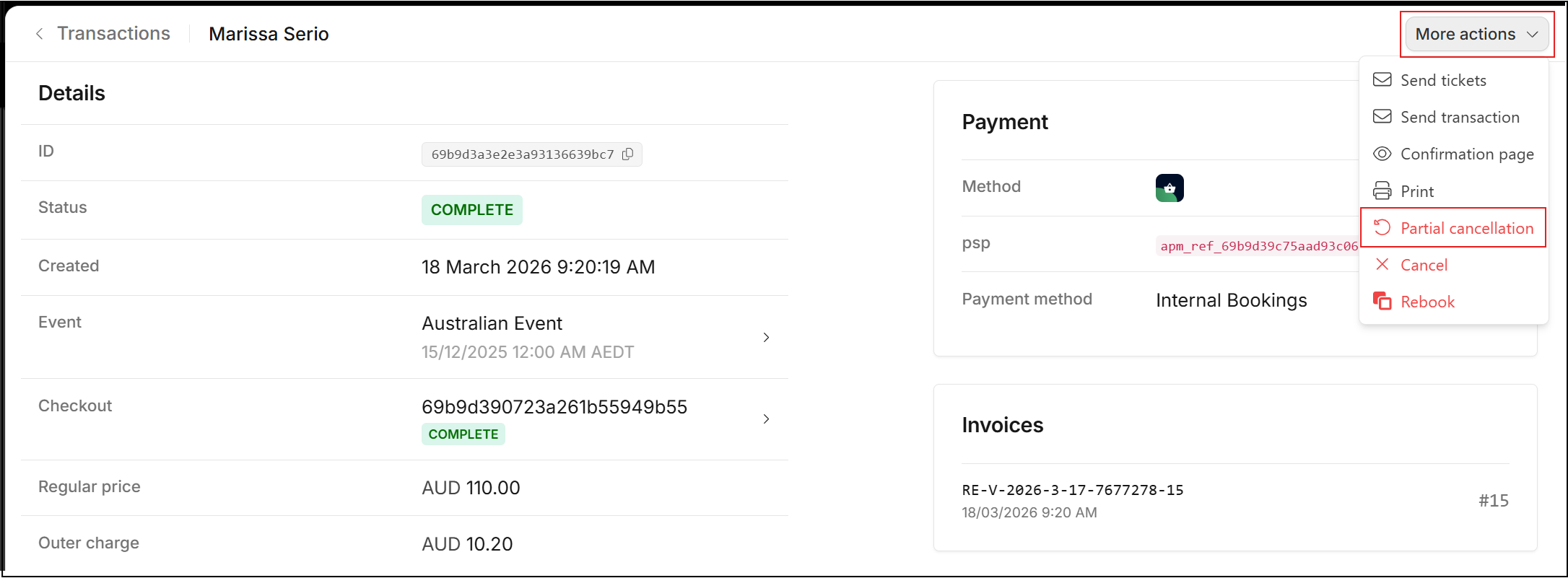
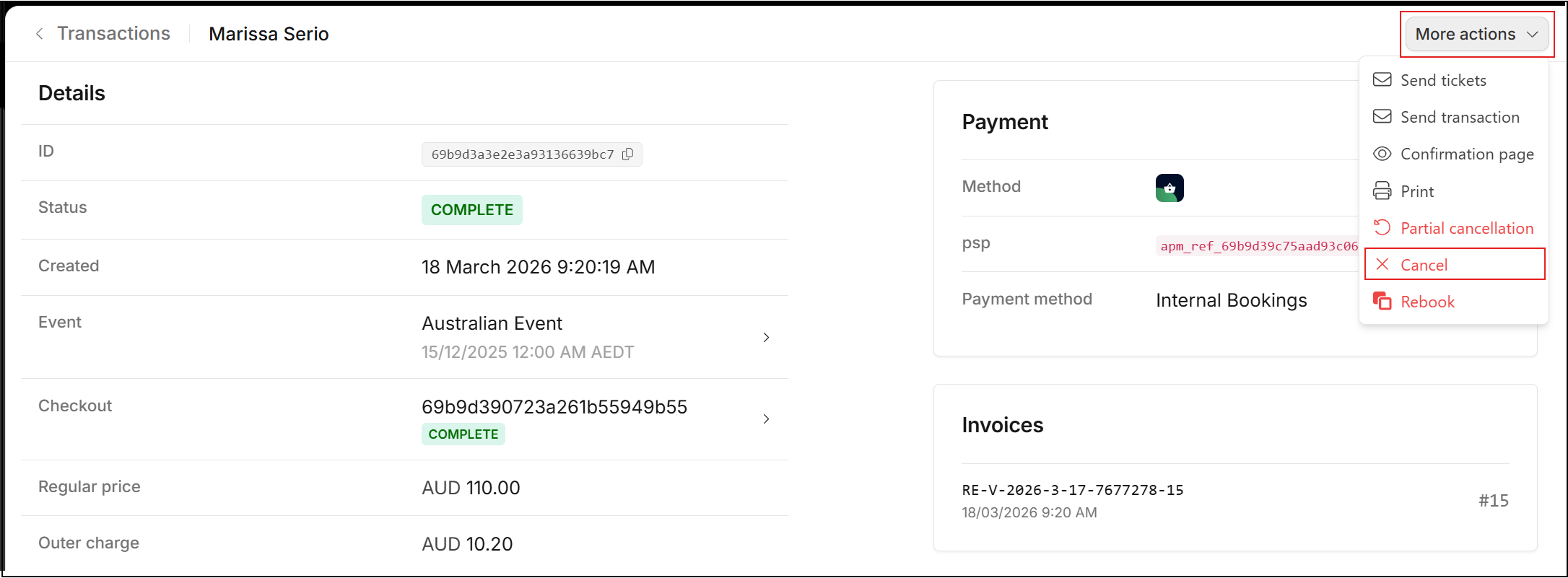
- Click More actions (located on the top right corner)
- Click Cancel (remembering this will cancel the entire transaction including all tickets)
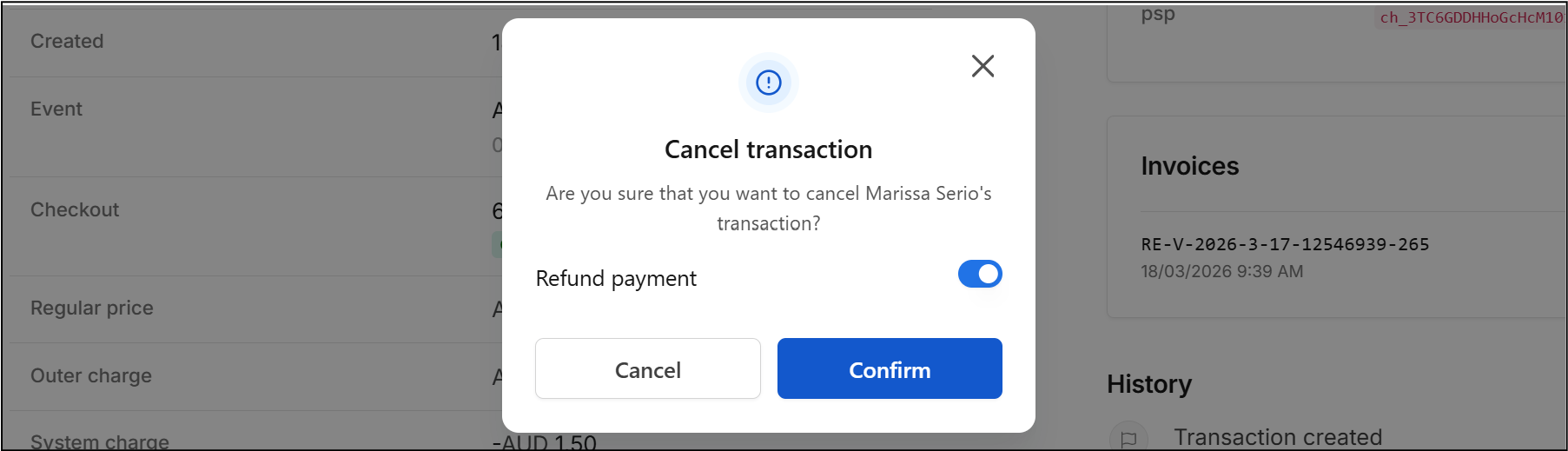
- A confirmation dialog box will appear,
- Toggle Refund Payment ON to refund the payment to the original payment method, or
- Toggle Refund Payment OFF if you want to cancel the order without a refund
Important: You will not be able to refund the transaction after this point.
- Click Confirm to proceed.
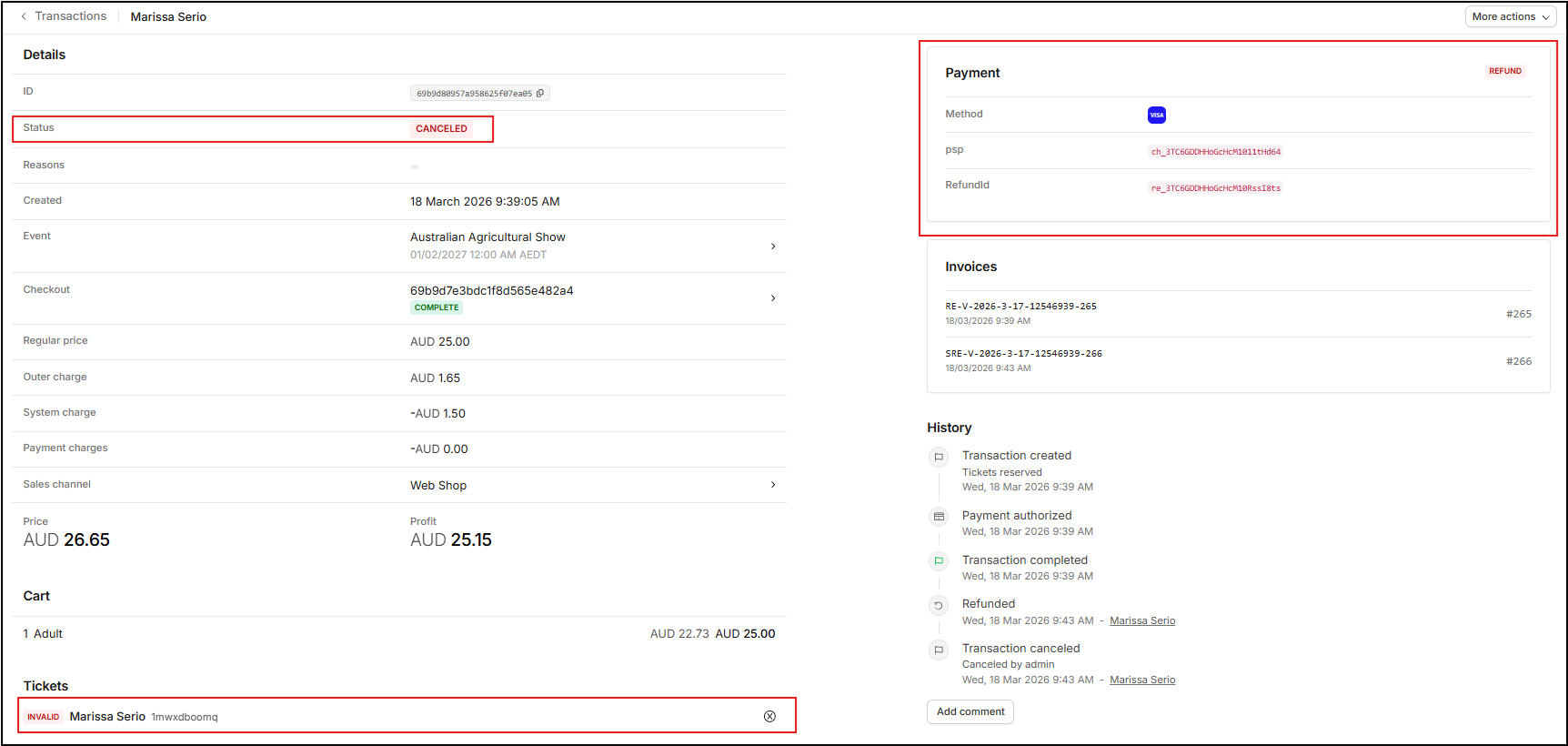
In the Transaction record, the Status is set to Cancelled, Payment is marked as Refund and Tickets are Invalid.
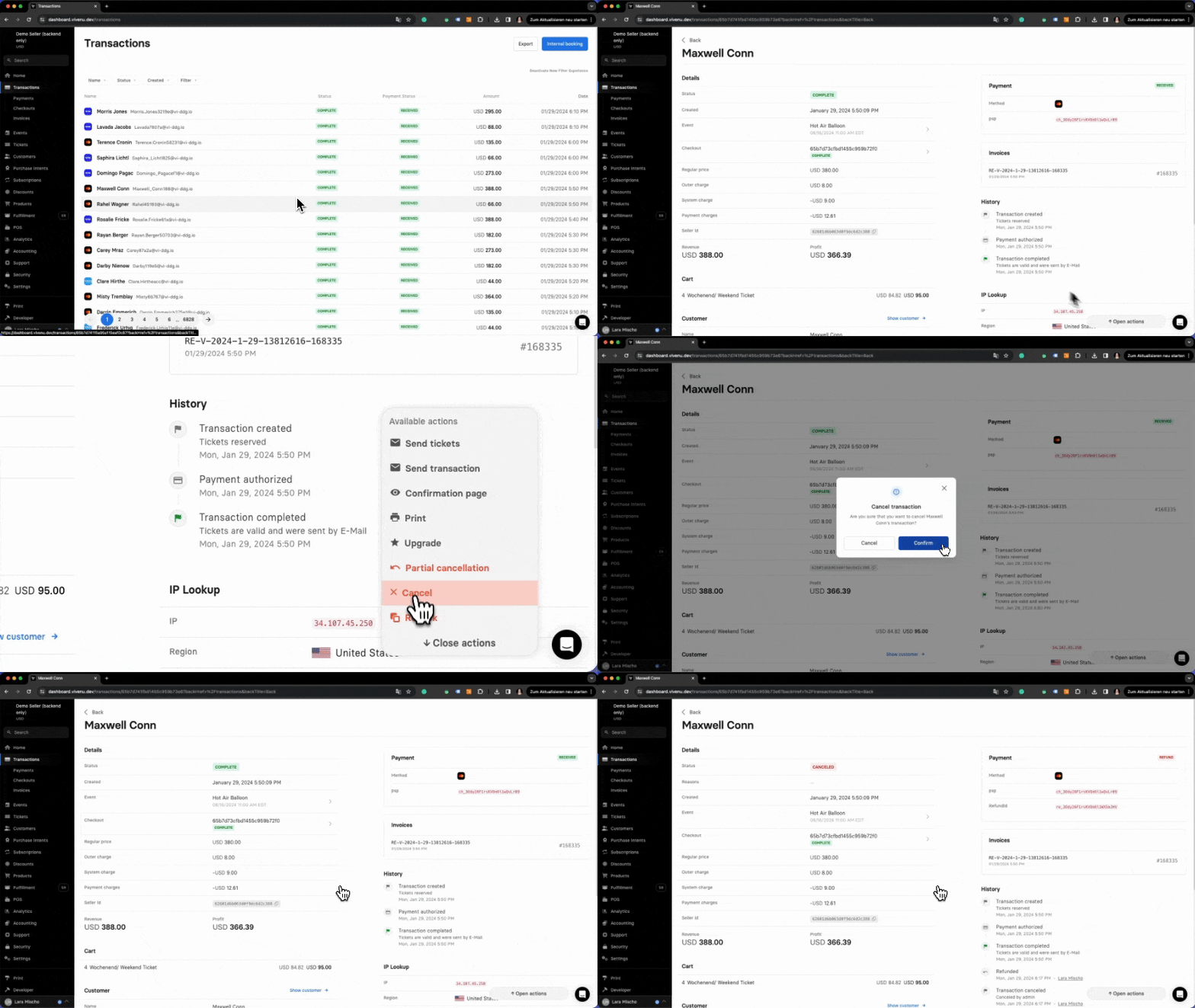
Help Guide - Partial Cancellation
- Open Transactions module (via the Account Menu in the dashboard)
- Locate the relevent order and click to open (seach tools and filters are available)
- Click More actions (located on the top right corner)
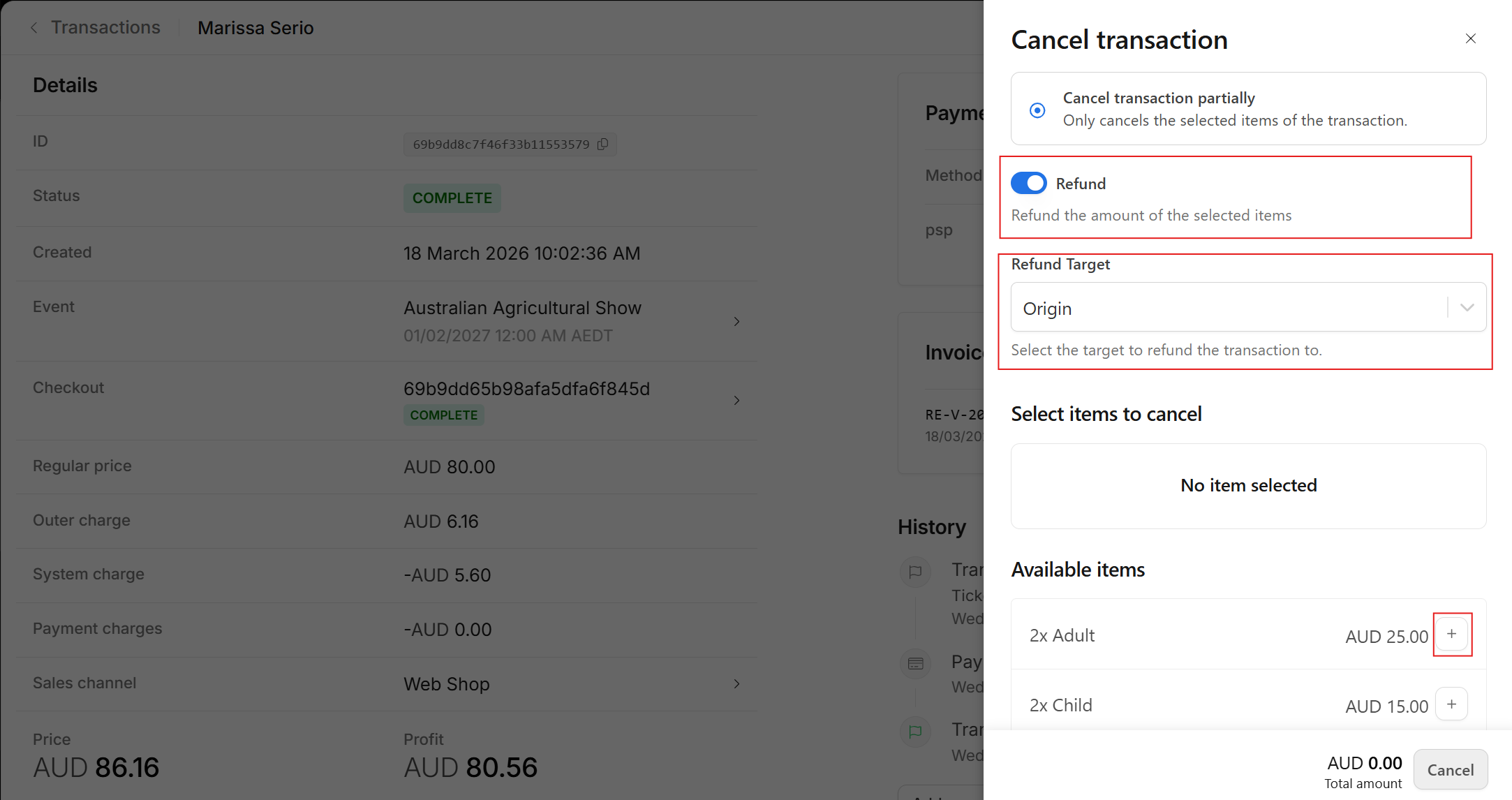
- Click Partial cancellation (confirmation dialog box will appear from the right)
- Toggle Refund ON if you are optionally choosing to refund the line items and set Refund Target to
- Origin - to refund the payment to the original payment method
- Voucher - to refund payment to a voucher
- Select the items you would like to cancel and/or refund. You can choose specific seats and/or fees by clicking the + button next to each item.
- Carefully check the summary of selected items
Important: You will not be able to refund the transaction after this point.
- Click Continue
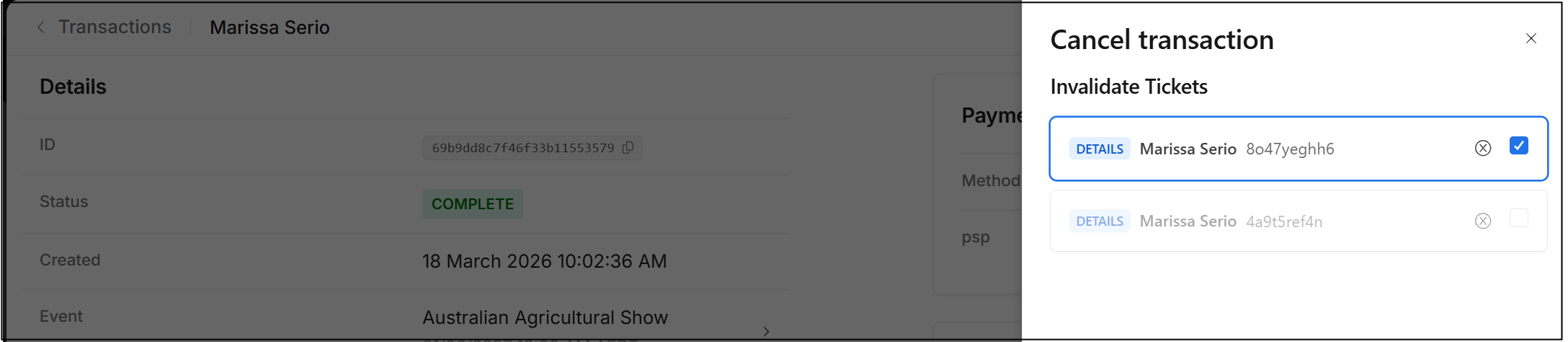
- You will be prompted to select which items to invalidate (so they can not be used/scanned)
- Click Cancel
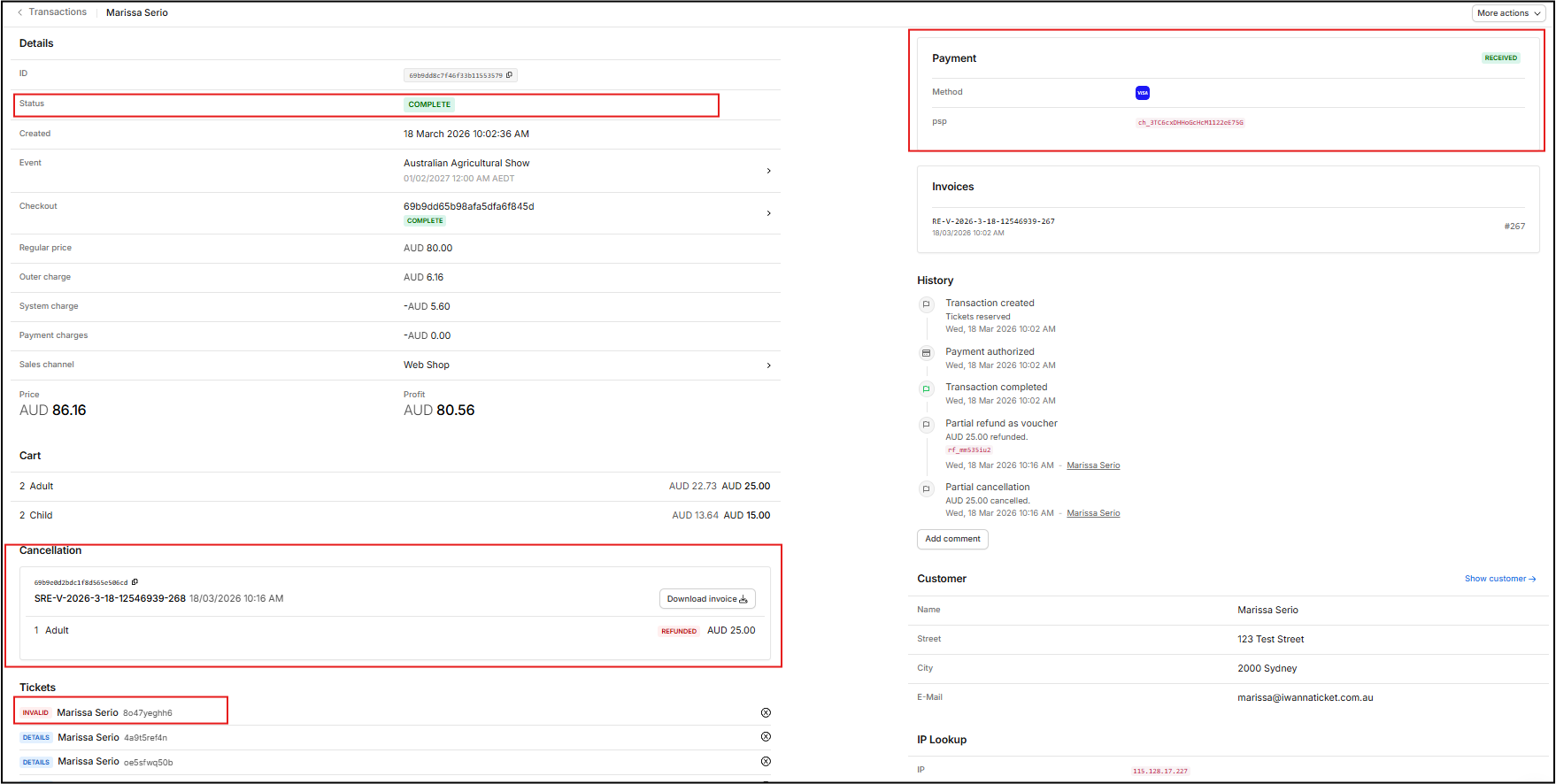
In the Transaction record, the Status remains as Complete, Payment remains as Received, however the relevant Tickets are set to Invalid. In addition, a cancelation invoice can be downloaded.