How can I customise how Customer Charges (Booking Fees) are displayed to Customers?
Introduction
In the dashboard, sellers have full control over whether to charge customers a Customer Charge.
If you choose to apply a Customer Charge, there are also options available to customise how this fee is displayed to customers. Note: This is different from choosing not to charge a fee at all.
Summary
In the Ticket Selector, you can display the face value ticket price with itemised customer charges shown in the shopping cart, or choose “All-in Pricing,” where the ticket price displayed in the Ticket Selector includes all fees upfront. Note: In the shopping cart, the ticket price and customer charges will always be itemised.
The following configurations are available:
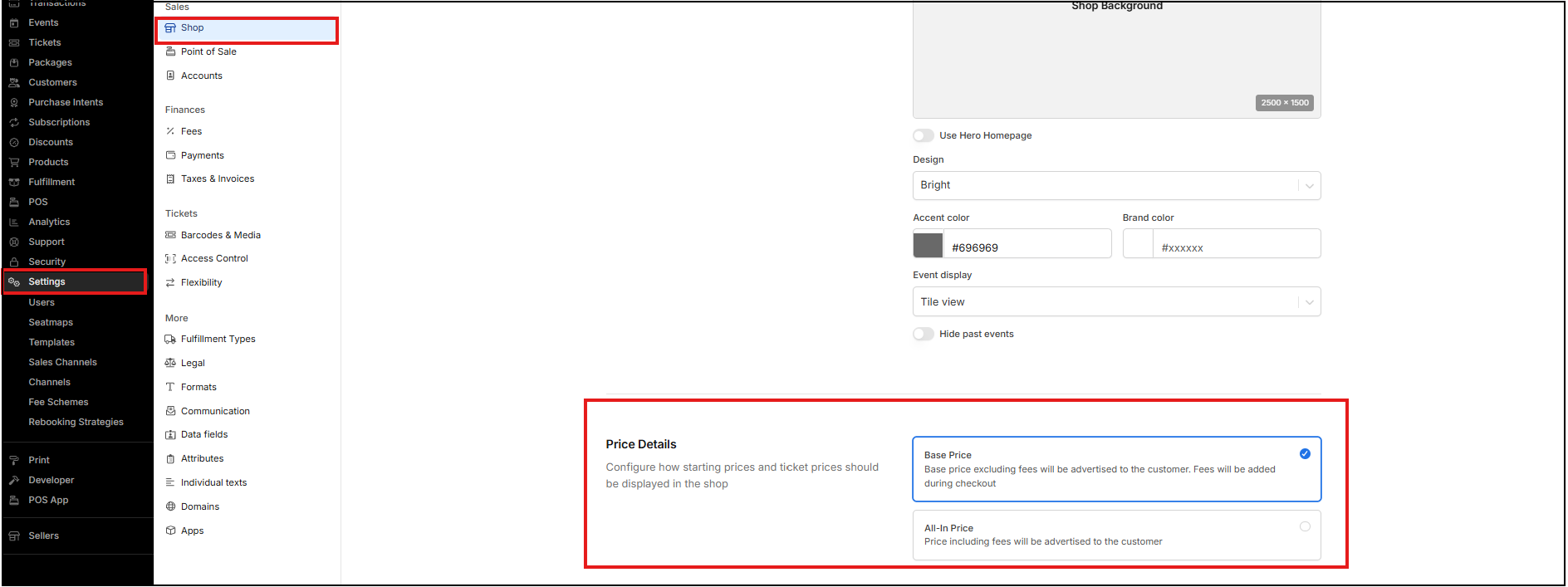
- Base Price - Excluding fees will be shown to customers. Fees will be added during checkout
- All-In Price - Price including fees will be shown to the customer.

How-to Guide
- Click on Settings (via the account menu) and then select Shop.
- From the Price details section, select Base Price or All-in-price
- Click Save