How to turn on (enable) Ticket Transfers & transfer a ticket on behalf of a customer
Introduction
The Ticket Transfer module allows both sellers and ticket buyers to transfer purchased tickets to another person. This feature helps you stay in control of ticket ownership while giving buyers more flexibility to share their tickets. There are no additional fees for utalising Ticket Transfers.
When you or the customer completes a ticket transfer the following takes place; Original tickets are invalidated, New barcodes are generated, Tickets are registered under the new owner
Key benefits
Greater flexibility for ticket buyers, Buyers can easily share tickets with friends, family, or colleagues, giving them more control over how their tickets are used.
Efficient ticket management Organisers can track ticket ownership at all times and process transfers quickly, ensuring accurate records and smooth handovers.
Improved attendee experience, Tickets can be transferred without friction. For season passes, individual event tickets can be transferred without changing ownership of the full pass.
Reduced administrative workload, Self-service transfers and dashboard-based transfers help minimise manual support requests.
If you enable Ticket Transfers, it’s important to clearly communicate this feature to your ticket holders - otherwise, how will they know this is available?
We recommend including this information on your website - typically within a FAQ or Ticketing Information section and/or on the event page or within your Terms & Conditions.
To reduce customer friction and maximise the benefits of self-service ticket transfers, this information should clearly outline your ticket transfer parameters, including:
- Which ticket types can or cannot be transfered, and any limitations
- Any applicable deadlines or cut-off times
- Outlining that there are no fees associated
- Details about what happens with a Ticket Transfer;
- Original tickets are invalidated, New barcodes are generated, Tickets are registered under the new owner
How can customers complete a ticket transfer themselves?
To further support your customers, IWannaTicket also provides a step-by-step guide that you can share directly with ticket holders, or you can use this create your own branded guidance to suit your audience or brand. Locate this via the Ticket Buyer Support category in our help area or related articles and the end of this article.
Summary
Ticket Transfer supports a smooth and secure ticket management process and reduces manual effort for organisers. It can be used for:
- Single tickets, Season passes or Individual events within a season pass
The Ticket Transfer module allows you to:
- Transfer tickets via the ticket buyer account or the organiser dashboard
- Transfer single or multiple tickets
- Set time limits for accepting transfers
- Automatically invalidate old tickets and generate new barcodes
- Store customer details for new ticket holders
Help Guide
STEP 1 - How to turn on (enable) Ticket Transfers
Ticket Transfer can be configured at three levels:
Pro tip: Enable Ticket Transfer at the seller level and adjust settings only for specific events or ticket types when needed.
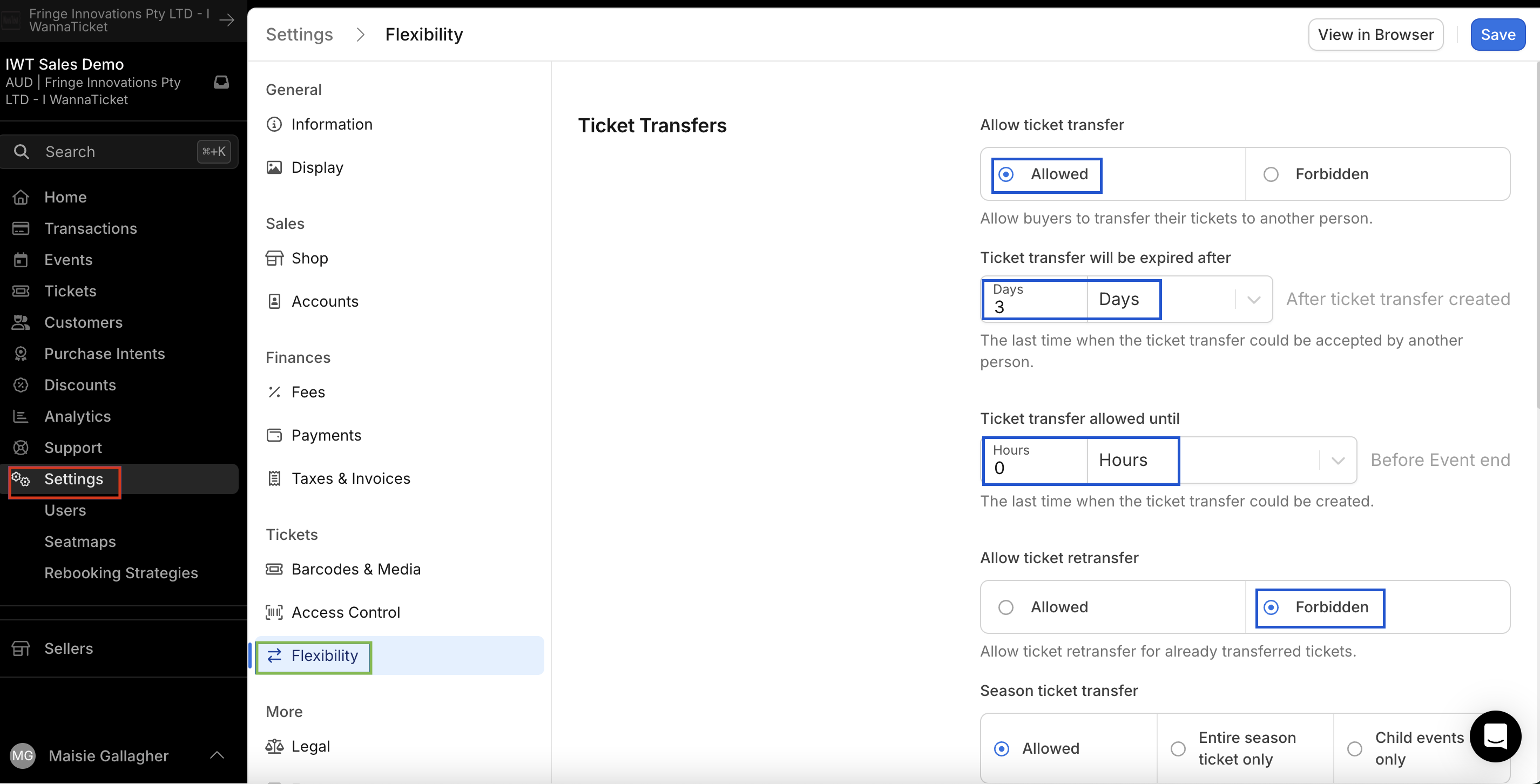
Seller Level - applies to all events and ticket types
- Go to Settings > Tickets > Flexibility
- Set Allow Ticket Transfer to Allowed
- Set validity period for transfer acceptance
- If the transfer is not accepted within this time, it expires
- To disable expiration, enter a very large value
- Set a cutoff time after which transfers can no longer be created
- Enter 0 if no specific cutoff is required
- Choose whether transferred tickets can be retransferred (Allowed or Forbidden)
- If applicable set Season ticket transfer permissions
- Click Save to apply your changes.
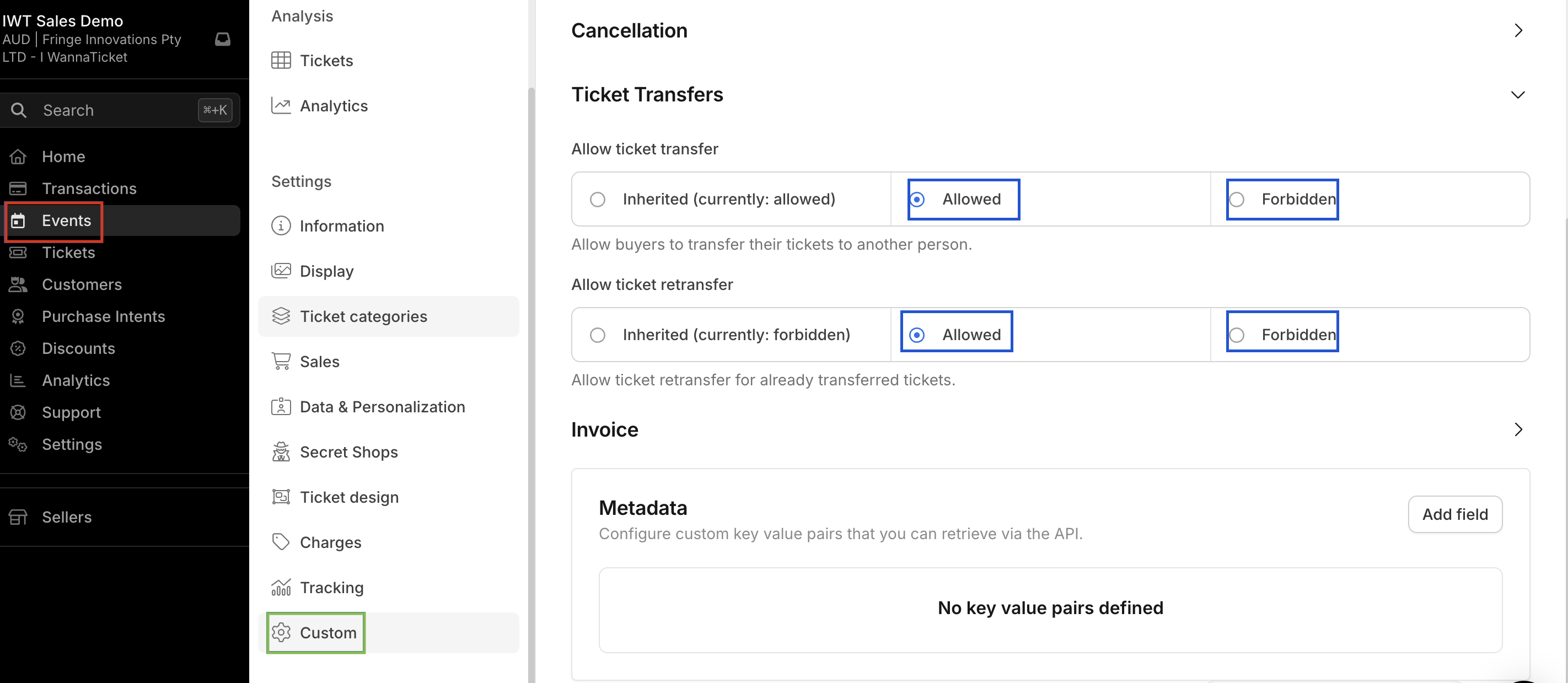
Event Level - applies to a specific event
- Click Events, then open your selected event
- Click Custom
- Configure ticket transfer and ticket retransfer settings accordingly
- Allowed, Forbidden or Inherited (from seller level)
- Click Save.
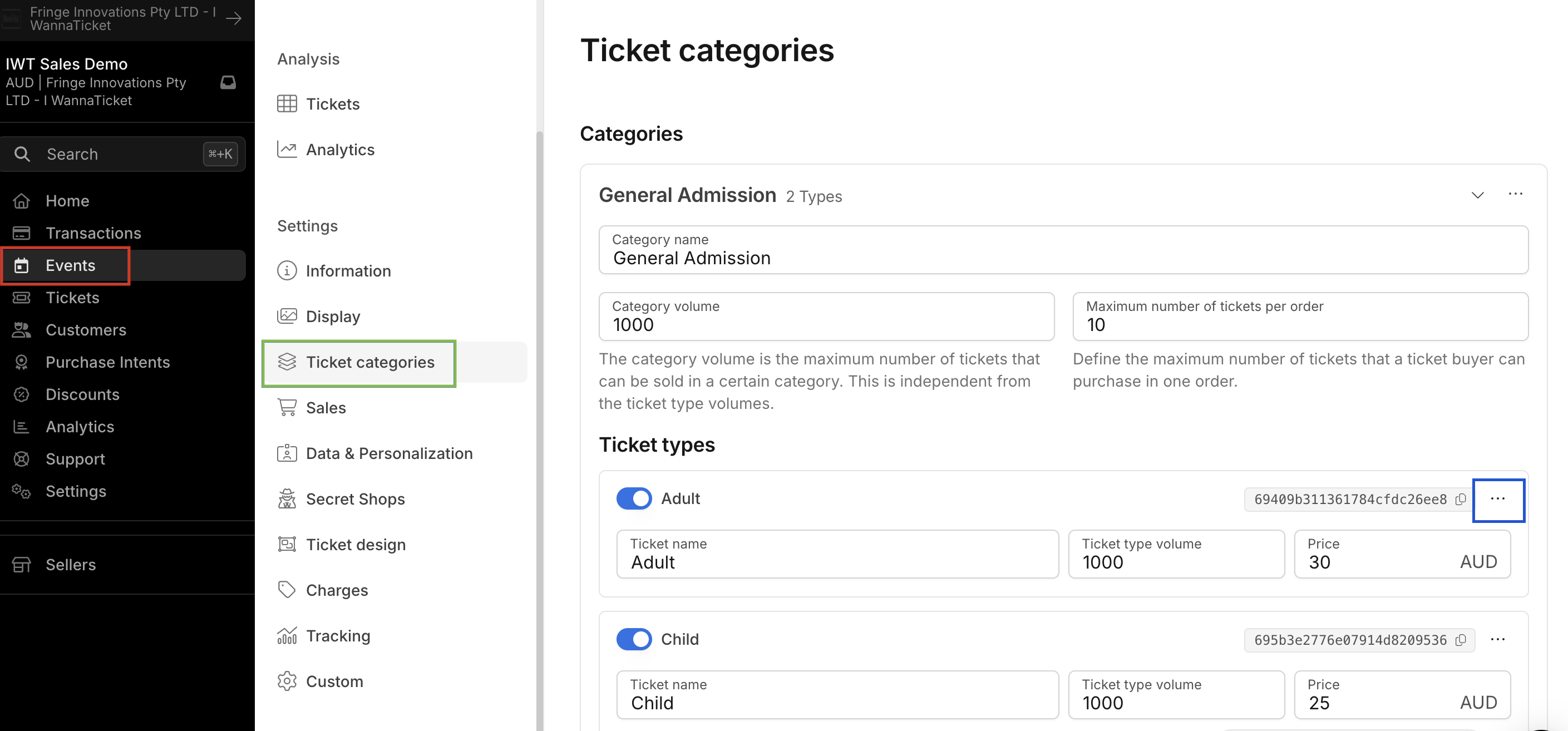
Ticket type level – applies to a specific ticket type
- Click Events, then open your selected event
- Click Ticket Categories
- Click the three dots button next to ticket type and press edit.
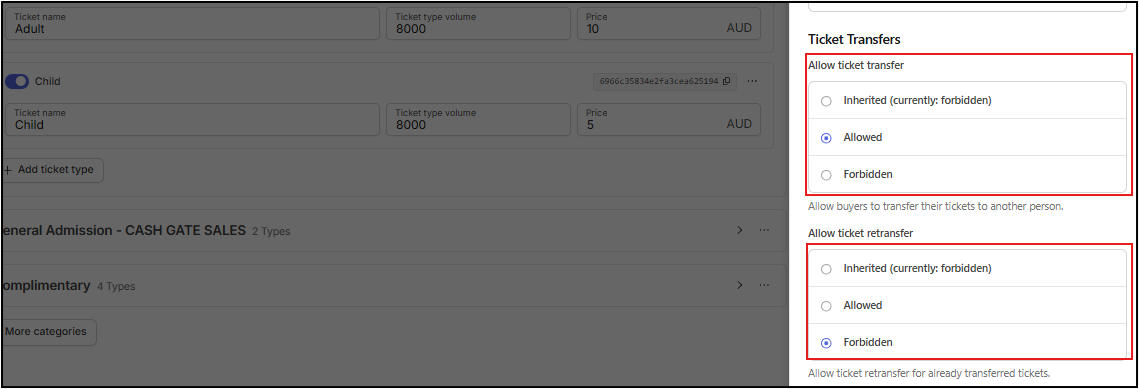
- Within the General Tab, Configure ticket transfer and ticket retransfer settings as required
- Allowed, Forbidden or Inherited
- Click Save
STEP 2 - How to process a ticket transfer via the dashboard on behalf of a customer
- Click Tickets (via the account menu) and open required ticket (a menu will pop out from the right)
- Click Transfer (located at the bottom right hand corner)
- Option a) enter the new recipient’s email address, or
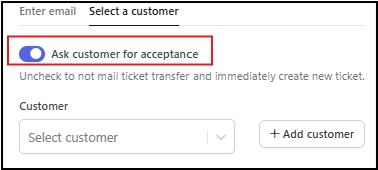
- Option b) select an exsisting or create a new customer*
- Click Create Transfer
*If an existing customer is selected or a new customer is created, the recipient will receive an email invitation to confirm the transfer. The email confirmation can be disabled to complete the transfer immediately by toggling this off.
How can customers complete a ticket transfer themselves?
To further support your customers, IWannaTicket also provides a step-by-step guide that you can share directly with ticket holders, or you can use this create your own branded guidance to suit your audience or brand. Locate this via the Ticket Buyer Support category in our help area or related articles and the end of this article.