Ticket buyer support - How can I transfer my ticket to another person?
Introduction
Did you know you may be able to securely transfer tickets to another person in real time, 24/7, without needing to contact the event organiser? If ticket transfers is enabled, the process is quick, simple, and convenient. To check if this feature is available, you might find information about this on the organiser’s website or social channels (under FAQs or Ticketing Information), or simply check your Order Confirmation Page. Our help guide below will walk you through the process step by step.
Summary
This guide helps customers transfer tickets to another person, based on the settings defined by the event organiser. These settings may include restrictions on specific ticket types, whether tickets can be retransfered and any deadlines or cut-off times.
- There are no fees associated with transfering tickets
- The original tickets are invalidated, you will no longer be able to access
- New tickets with new barcodes are issued to the recipient
- Tickets are registered under the recipient’s name
Help Guide
Note: Customer Account Holders
If your organiser has enabled the customer account feature and you’ve created an account, you can complete a ticket transfer by signing in. Note: accounts are specific to each event organiser (not IWannaTicket). Sign in to your customer account specific to the relevent event organiser
- Log in can be initiated from the organisers event listing/website or via your order confirmation email (separate from your ticket email) (ref: image 01)
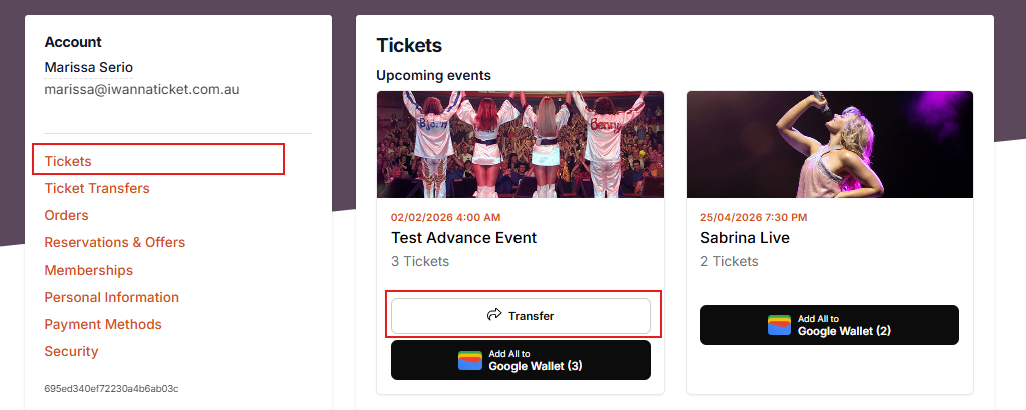
- Click on Tickets in the account menu, if you see a Transfer button, the organiser has allowed transfers, click Transfer to proceed
- Skip to Step 1.4 below.
STEP 1 - Transfer Tickets
Start a ticket transfer from your Order Confirmation page or customer account.
- Find your order confirmation email, click View Order (ref: image 01), this opens the order confirmation page.
- If you see a Ticket Transfer button, the organiser has enabled ticket transfers
- Click Transfer Tickets
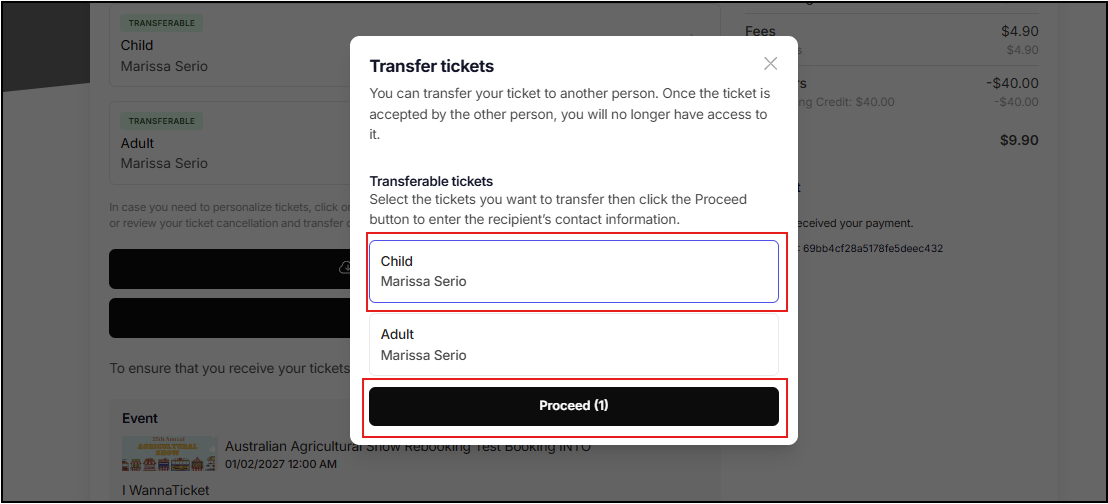
- Select one or more tickets, click Proceed
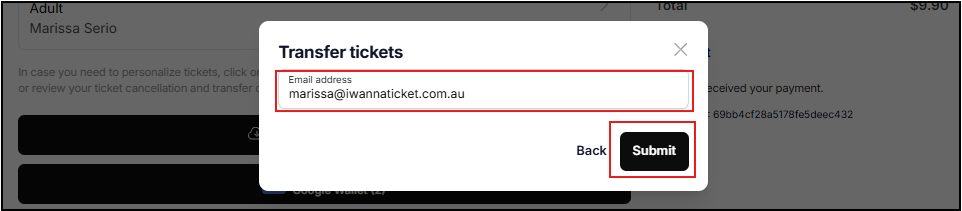
- Enter the recipient’s email address, click Submit
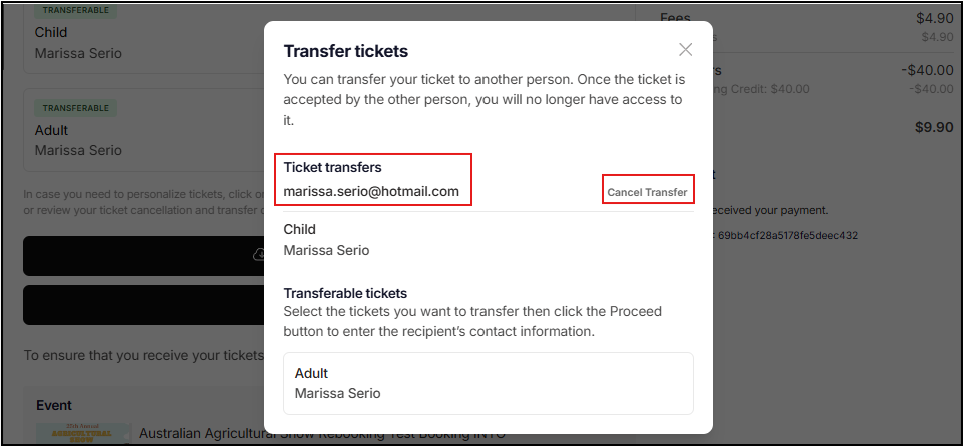
A confirmation pop up will appear, you can see transferred tickets here. You can also cancel a ticket transfer from this page if required. You will also see any remaining tickets in your order, with the option to quickly select and transfer additional tickets if needed.
STEP 2 - Get the Ticket Recipient to complete acceptance (required step)
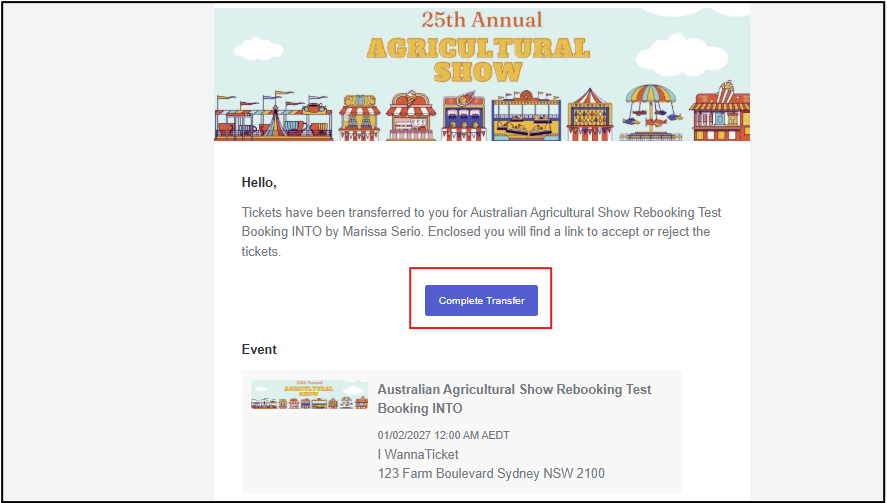
- The recipient will receive an email and needs to click complete transfer
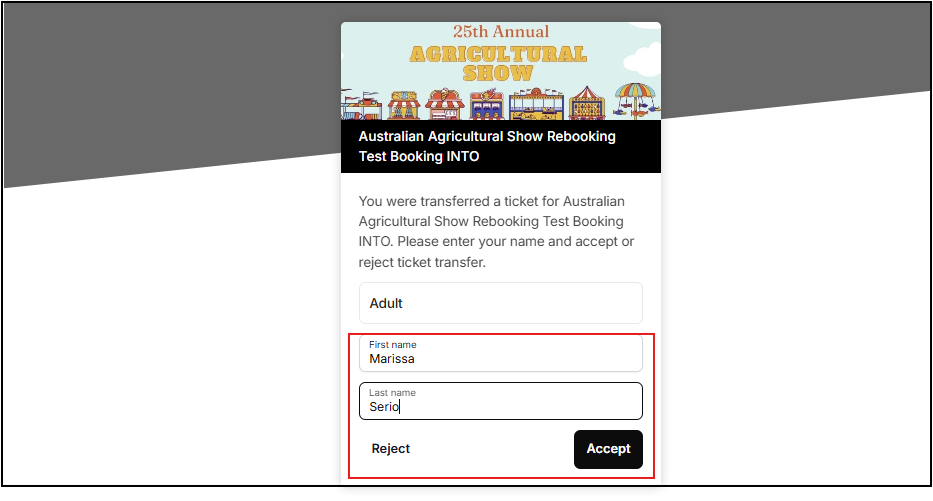
- They need to confirm their details and any required fields set by the organiser
- Click Accept
Help Guide - Step by Step
Ticket Transfer process


Ticket recipient process