Revenue Report: Ticket Revenue Only
Introduction
The IWannaTicket Analytics and Reporting Module is extensive and can be filtered using almost any available data point. By default, a series of standard reports are available under Analytics > Reporting. These reports can be customised to suit your requirements and then:
- Saved privately for your own use
- Saved and shared with your team
- Scheduled for automatic email delivery (Daily, Weekly, or Monthly)
- Exported to .xlsx, .csv, or .pdf formats
Custom Dashboards are also available, allowing you to create visual dashboards containing your most frequently used reports. Dashboards can be kept private or shared with other users within your organisation. Contact the IWannaTicket Support Team to enable Custom Dashboards on your account.
Summary
Depending on your account configuration, customer charges (such as booking fees) may be enabled and included in your revenue. As a result, the Revenue Report will, by default, display all revenue collected.
If you need to report on ticket sales revenue only, the example below shows how to exclude customer charges from the report. This is particularly useful when providing revenue reports to promoters, artists, or other third parties where only ticket sale revenue should be included.
Help Guide
For this example, we will generate a report for a single event. The event is on sale from 01/03/26 to 31/07/26, and we want to report on ticket sales only, with the results broken down by ticket type.
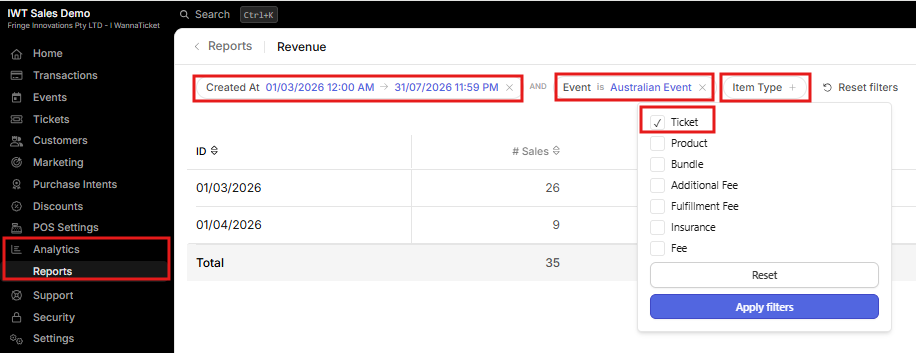
- Click Analytics, then the Reporting module
- Select Revenue Over Time from the Finance Reports section.
Once the report opens, you'll see a range of filters across the top of the page. These are extensive, but for this example we will only use a few key filters.
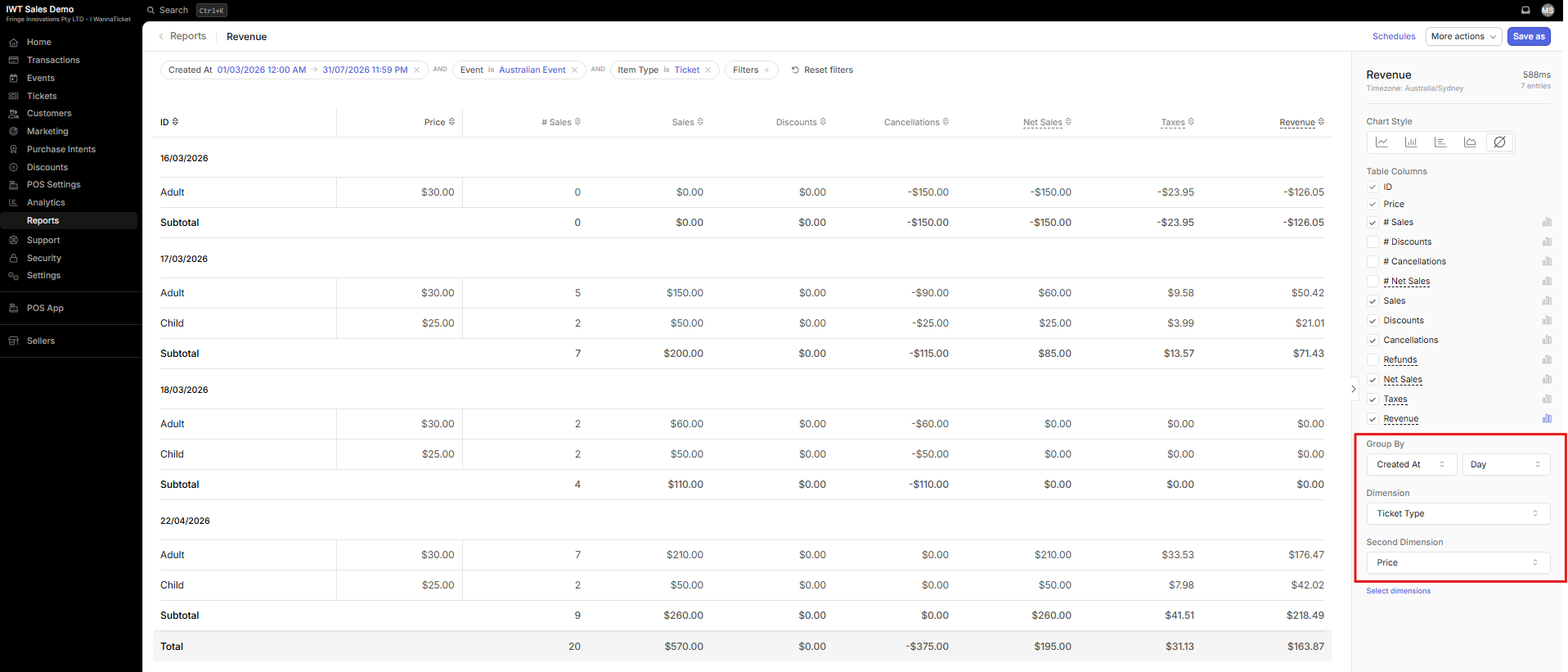
On the right-hand side, you can choose which data points are displayed and how the report is grouped.
- Adjust Filters
- Click + Filter, and add the Date Range to cover the sales period of your event. For an ongoing report we recommend selecting the event's on-sale date and the final day of sales (e.g. 01/03/26 – 31/07/26).
- Click + Filter, select Event, and choose your event.
- Click + Filter, select Accounting Transaction > Item Type, choose Ticket
- Adjust how the data is displayed, use the Group By options. For this example:
- Created At = Day
- Dimension = (Transactions) Ticket Type
- Second Dimension = (Accounting Transactions) Price
- Click Save as and save privately for your own use, or toggle shared to share with your team
- Click Schedules to configure automatic email delivery (Daily, Weekly, or Monthly)
- Click More Actions for the abilty to export to .xlsx, .csv, or .pdf formats