How can I reassign Seats for a Customer?
Introduction
Organisers can easily reassign seats for customers in the dashboard using the Manage Seat feature. This allows the customer’s seat to be updated directly within the seat map without needing to amend the order, process a refund or credit, or perform a rebooking.
As part of the process, you can also choose whether the original seat should be released back for sale after the seat change, or remain blocked following the reassignment.
By default, the customer will receive an email notification advising them of the seat change; however, this option can be deselected if required.
Summary
Seats can only be reassigned within the same event and/or through a Secret Shop linked to the main event. Reassigning a seat does not incur any additional fees for the customer or any system charges between IWT and your organisation. Seats can only be reassigned one at a time using this feature.
Help Guide
- Locate the Ticket - this can be done in several ways, including via the Tickets, Customer, or Transactions modules.
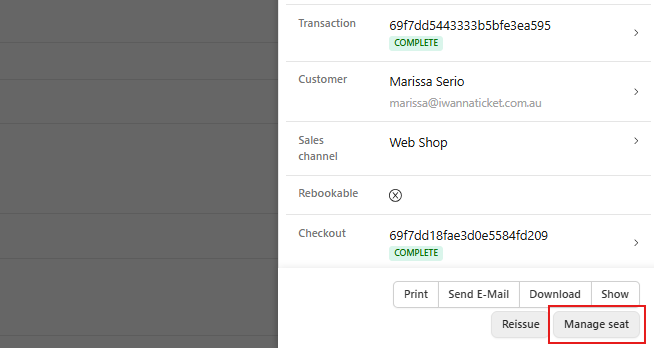
- Click on the Ticket to open the side menu
- Select Manage Seat (found at the bottom of the menu)
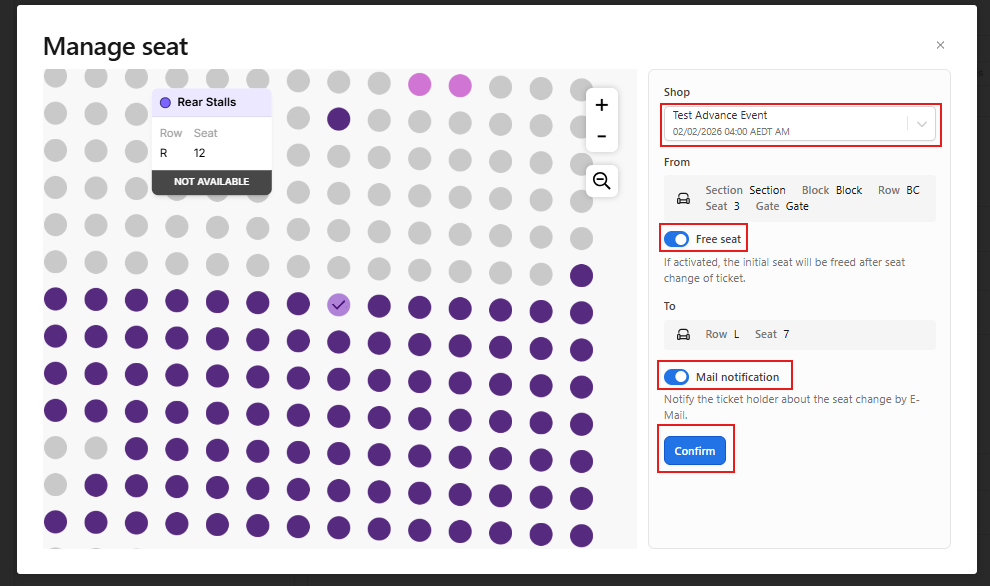
Note: The current seat selection will be higlighted with a tick on the seatmap for easy reference
- Use the drop down menu under the Shop heading to select the Event or Secret Shop
- Tick/Select the desired seat from the Seatmap
- Review the optional settings for Free Seat and Mail Notification, toggle on/off as required
- Click Confirm
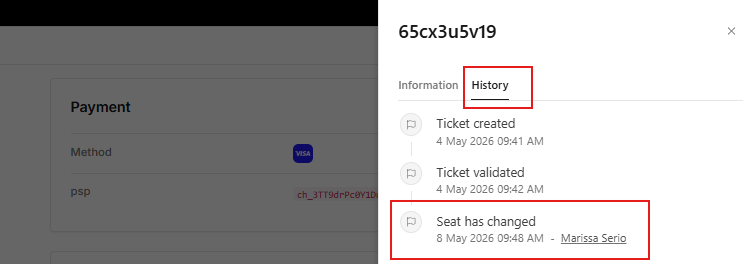
To review the history of a seat change, click the ticket to open the side menu, then switch to the History tab where the seat change will be recorded in the Ticket activity log.