How can I create Contingents (Hold) on a Seatmap
Introduction
With seat contingents, you can block specific seats from the regular shop, preventing them from being purchased by the general public.
- Release seats at a later date for public sale through the main event
- Keep seats blocked from general sale and offer them exclusively via secret shops
- Reserve seats for internal sales through private (secret shop) channels
Typical use cases include house seats, producer holds, or seats intended for internal sales only.
Summary
This help guide assumes you have already created a seatmap, you have created your event and applied your seatmap and are setting contigents for a Single Date event. For recurring events, please discuss with your account manager first.
Contingents (holds) are created within the specific event once these steps have been completed. You can create an unlimited number of contingent groups and adjust/edit the seats within each group if needed. However, when releasing contingents from the main event for General Sale, this is typically done at the group level rather than by individual seats.
If you plan to release seats in stages, it is recommended to organise them into separate contingent groups accordingly.
Help Guide
- Open the respective Event
- Click Seatmap within the event menu (located under General)
- Click on the seat you want to block. By holding down the Shift key, you can draw a window to select multiple seats simultaneously. Using the Ctrl or Command key, you can draw a polygon for selection.
- In the menu on the right, select the desired contingent group or click + Add to create a new contingent group.
- Name the contingent and, if necessary, specify a date until which the contingent should remain valid (Expiry Date: Not required if the hold is indefinite or only to be released manually)
You can edit or view your current contigents any anytime from this screen.
- Hover over the contingent group name to highlight the corresponding seats on the seatmap for easy identification
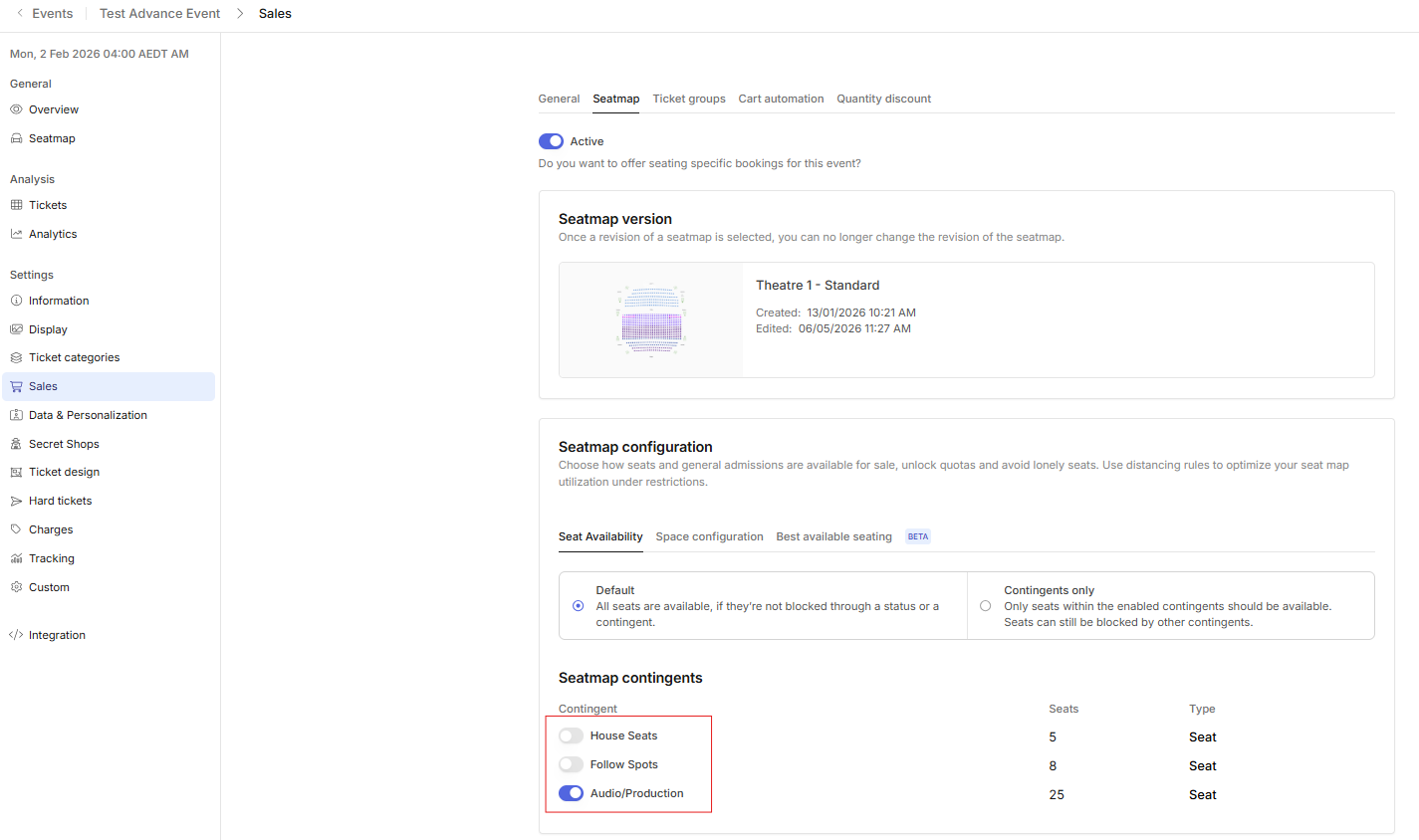
- Alternatively, for a simple high-level view of contingents, including the number of seats within each group and visibility of what is blocked or open to the public, click Sales and select the Seatmap tab (ref image below).
How can I edit / release a specific seat to the general public from a contigent group or move it to another contingent group?
- Open the respective Event
- Click Seatmap within the event menu (located under General)
- Click the desired seat (the seat will indicate on the seatmap with a tick)
- The seats current contingent will highlight with a blue tick on the right menu
- Simply click the blue tick box to remove
- To move a specific seat into another contingent group, simply follow the same steps as above, once you have removed the current contigent, simply tick the correct contigent or click + Add to create a new group.
How can I release contingents to the general public through the main event?
- Open the respective Event
- Click Sales within the event menu (located under Settings)
- Click the Seatmap tab
- A list of Seatmap contingents will be visible, allowing you to view the number of seats within each contingent group and their current status. Simply toggle contingents; ON to release them for sale or leave toggled OFF as long as required.